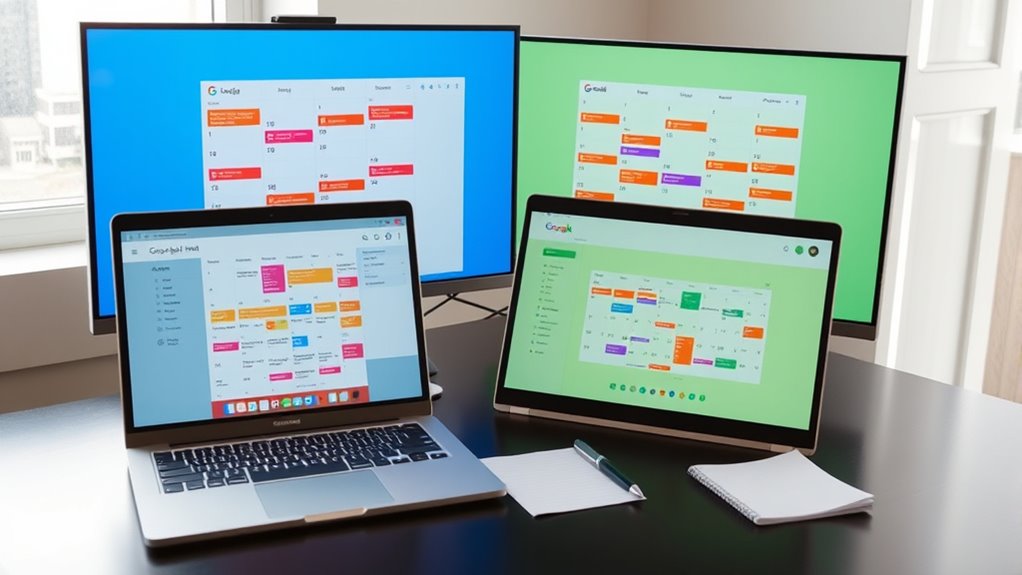

To create a joint Google Calendar for a 5-hour time difference, start by setting your primary calendar’s time zone to your location and encourage others to do the same. Use the world clock feature to view multiple time zones side-by-side or specify event times with specific zones to avoid confusion. Share the calendar with your team, assigning proper access levels. If you keep these tips in mind, you’ll guarantee everyone stays on the same page, regardless of the time zone.
Key Takeaways
- Set a shared calendar with a primary time zone, then add events specifying different time zones for clarity.
- Enable the world clock feature to view both locations’ times side by side during scheduling.
- Always specify the event’s time zone when creating or editing to avoid confusion across regions.
- Share the calendar with team members, assigning appropriate view or edit permissions.
- Use scheduling tools or add-ons to automatically convert and display times for both zones.

Managing schedules across a five-hour time difference can be challenging, but Google Calendar offers effective tools to simplify this process. When working with team members or collaborators in different time zones, mastering time zone management becomes essential. Google Calendar allows you to set your primary time zone and add secondary zones so everyone stays on the same page. By enabling the world clock feature, you can view multiple time zones side-by-side, making it easier to coordinate meetings without constant back-and-forth. This feature helps prevent scheduling mishaps caused by overlooked time differences, guaranteeing all participants are aware of the correct local times.
To make collaboration smoother, calendar sharing strategies are critical. You can share your calendar with colleagues or clients, giving them view-only access or permission to add and modify events. When sharing, specify the level of access carefully—this prevents accidental changes while still allowing everyone to stay updated. Setting up shared calendars is especially helpful for recurring meetings or project milestones that need to be visible across different regions. Using the ‘Add People’ feature, you can send invites directly through Google Calendar, which automatically includes the relevant time zone information. This way, invitees see the event at the correct local time, reducing confusion and missed appointments.
Another effective approach involves creating a joint calendar dedicated to your team’s activities. This centralized calendar helps consolidate all relevant events, deadlines, and meetings, and it updates in real-time for everyone involved. When adding events, always specify the time zone to guarantee clarity—Google Calendar defaults to your primary zone but can be customized per event. This is especially useful when scheduling meetings that span multiple time zones, as it assures that all participants are viewing the event at the correct local time, regardless of their location.
In addition, leveraging calendar sharing strategies includes syncing your Google Calendar with other tools or apps that your team might be using, such as Slack or project management platforms. This integration ensures that everyone receives timely reminders and updates, keeping communication seamless. When managing a joint calendar across a five-hour time difference, it’s essential to establish clear guidelines for scheduling—like preferred meeting hours—and to use the calendar’s features to respect those boundaries. Proper time zone management combined with strategic calendar sharing helps prevent misunderstandings, increases efficiency, and guarantees that everyone stays informed and aligned, no matter where they are in the world. Additionally, understanding the role of color accuracy in projectors can help you choose the right visual tools for presentations and remote collaboration, ensuring clarity and professionalism.

15.6" Smart Display with Google Calendar,Google Play,No Subscription,Black
- Visual Task Manager: Install and sync family calendar apps
- Google Calendar Included: Free, secure scheduling app with sharing features
- Family Artwork Display: Show photos on desktop, fridge, or wall
As an affiliate, we earn on qualifying purchases.
As an affiliate, we earn on qualifying purchases.
Frequently Asked Questions
How Do I Handle Daylight Saving Time Changes in Joint Calendars?
When managing daylight saving time changes in joint calendars, you should make certain your calendar app automatically updates for time zone changes. Google Calendar, for example, handles time zone updates and daylight saving adjustments if you enable automatic time zone detection. Double-check that everyone’s calendar settings are correct and synchronized. This way, meetings stay on track despite daylight saving shifts, avoiding confusion and missed appointments.
Can I Set Different Time Zones for Specific Events?
You can’t set different time zones for specific events directly in Google Calendar, but you can use time zone exceptions or event-specific zones. When creating or editing an event, click on the time zone option and select the desired zone. This way, you can manage time zone exceptions for individual events, ensuring they reflect the correct local time without affecting your main calendar settings.
How Do I Prevent Time Zone Errors When Scheduling Across Regions?
Think of your calendar as a well-oiled machine—smooth scheduling depends on avoiding time zone discrepancies. To prevent errors, always double-check that your event times match the participants’ local zones. Use Google Calendar’s time zone feature to set specific zones for each event, ensuring calendar synchronization stays tight. This way, you dodge confusion and keep everyone on the same page, no matter where they’re located.
Is There a Way to Automate Time Zone Conversions for Recurring Events?
You can automate time zone conversions for recurring event scheduling by using Google Calendar’s built-in features. When creating a recurring event, set the primary time zone for your calendar, and Google will automatically adjust the event time for participants in different zones. Additionally, you can add multiple time zones in event details or use third-party tools to guarantee automated time adjustments, making cross-region scheduling seamless and error-free.
How Do I Share Joint Calendars Securely With External Users?
To share joint calendars securely with external users, focus on access control and sharing permissions. You can set specific permissions, like view-only or limited editing, to control what external users can do. Use Google Calendar’s sharing settings to invite them via email, ensuring you select the appropriate access level. Regularly review sharing permissions to maintain security, and avoid making calendars public to prevent unwanted access.
shared team calendar for multiple time zones
As an affiliate, we earn on qualifying purchases.
As an affiliate, we earn on qualifying purchases.
Conclusion
Imagine trying to dance with a partner across different time zones—without syncing, you risk stepping on each other’s toes. Creating a joint Google Calendar bridges that gap, keeping everyone in sync despite the 5-hour difference. Just like a well-choreographed dance, it ensures smooth coordination and seamless communication. With this simple tool, you turn chaos into harmony, making collaboration feel effortless regardless of where your team members are located.
Google Calendar time zone converter tool
As an affiliate, we earn on qualifying purchases.
As an affiliate, we earn on qualifying purchases.
calendar sharing permissions for teams
As an affiliate, we earn on qualifying purchases.
As an affiliate, we earn on qualifying purchases.